
Cartesia speech provider
A Cartesia speech provider lets Live Hub use your Cartesia account for text-to-speech (TTS).
Adding the provider requires the API key from your Cartesia account. Cartesia's advanced configuration parameters can be set at either of two levels:
- Provider level: Enter the parameters in the 'TTS configuration' field. A parameter set on the provider applies to every bot connection that uses the provider.
- Bot connection level: Enter the parameters on the bot connection's Advanced tab. A parameter set on a bot connection applies to that connection only.
If the same parameter is set at both levels, the bot connection value takes precedence.
Add a Cartesia speech provider
To add a Cartesia speech provider:
-
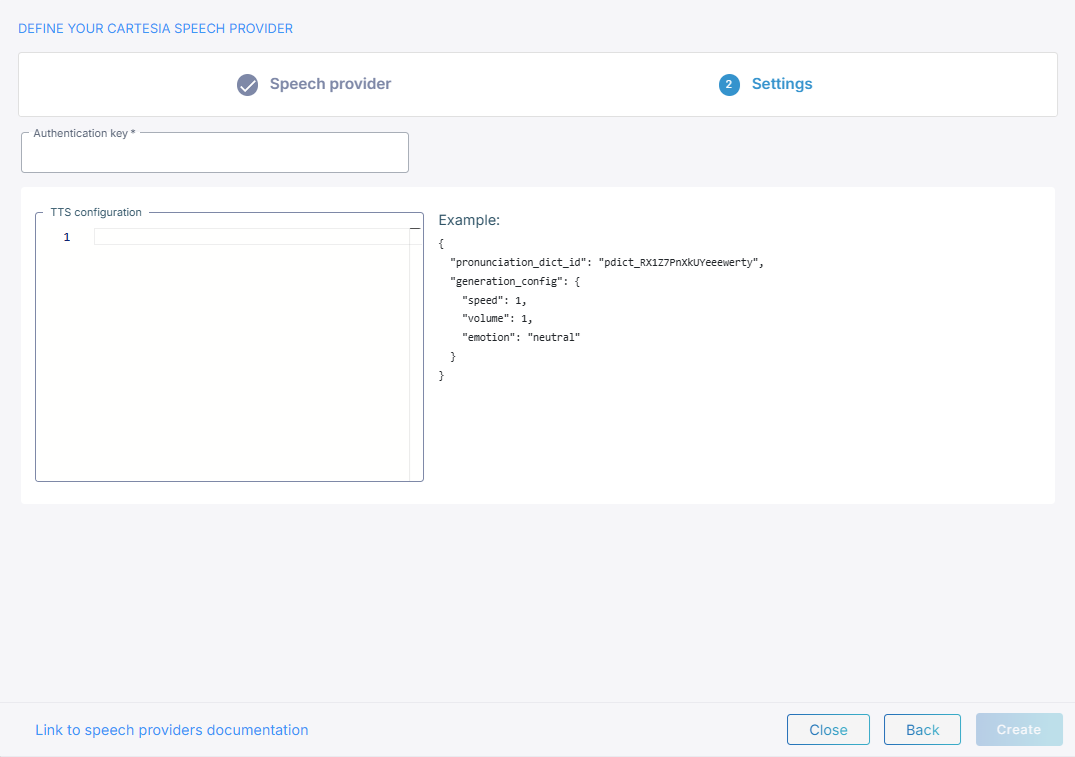
In the 'Authentication key' field, enter the API key from your Cartesia account.
-
Optional: In the 'TTS configuration' field, enter the advanced configuration parameters that apply to every bot connection using this provider. See Configure advanced parameters at the provider level.
-
Click Create.
Configure advanced parameters at the provider level
The JSON you enter in 'TTS configuration' is merged into every synthesis request Live Hub
sends to Cartesia, so it applies to every bot connection using this provider. Put the
parameters under speechCreateParams. The full set is the Generation Request object in
Cartesia's text-to-speech WebSocket API.
{
    "speechCreateParams": {
        "addPhonemeTimestamps": true
    }
}
Name the parameters in camelCase, even though Cartesia documents them in snake_case.
Configure advanced parameters at the bot connection level
You can set the same parameters on a single bot connection rather than on the provider,
under ttsPassthruConfig in the JSON editor on the connection's Advanced tab. See
Manage bot connections.
{
    "ttsPassthruConfig": {
        "speechCreateParams": {
            "addPhonemeTimestamps": true
        }
    }
}
Language, model, and voice
You select the language, the model, and the voice per bot connection, on its Settings tab, not on the provider. See Manage bot connections.